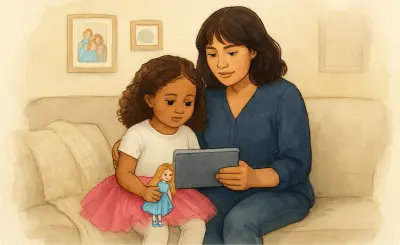
Topics are the situations, routines, or challenges you want to create a visual support for. Ella offers pre-written topics organized into categories, or you can enter your own.
Example custom topics:
After submitting a topic, Ella generates a draft outline. In the preview, you can:
Take time to review the outline carefully before creating — it shapes everything that follows.
Each format is designed for a different purpose. You can choose whatever fits the situation best, or create several formats for the same topic.
All formats can be shared via link and downloaded. All except video clips can also be printed as PDFs. See the Export section for layout options.
A narrative that prepares a child for an upcoming, unfamiliar, or recurring situation. Describes what to expect and how they can respond, using clear, affirming language to reduce uncertainty. Includes read-aloud support, first- or third-person narration, and translation into 70+ languages.
Best for:
A first-person narrative that revisits a past experience in sequence, translatable into 70+ languages. Helps build recall, develop narrative structure, and make personal meaning from things that have already happened.
Best for:
A sequence of panels, each with an image and short text, walking through a situation, interaction, or process. Panels can be left open to prompt the child to think through what comes next.
Best for:
Breaks a routine into steps that children can follow and check off as they go. Available in list or grid view, with checkboxes to mark off completed steps.
Best for:
Turns an instruction into a simple visual sequence: first this, then that. Instead of holding a whole instruction in mind, a child can see what needs to happen now and what comes next. Uses 1–3 panels and can be expanded. A longer First-Then Board functions like a visual schedule.
Best for:
Try: "First lunch, then play" or "Brush teeth, then quiet time."
A structured instructional aid that walks through how to complete a routine, chore, or task one step at a time using action-focused visuals and brief supporting text.
Best for:
Images paired with labels or short phrases to support communication, build vocabulary, or represent choices and concepts. Can be used one at a time or arranged as a board.
Best for:
Turns a defined set of real options into a simple visual menu. Instead of asking an open-ended question like "What do you want?", a Choice Board shows what's available and lets the child make a selection. Works best when options are comparable and all currently available.
Best for:
Tip: Describe the choice and the available options and Ella will build the board. Example: "Snack choices: pretzels, Goldfish crackers, apple slices, and string cheese."
Communicates one clear idea in a single visual. Designed to live somewhere visible so children can refer to it on their own.
Best for:
Tracks progress toward a goal by letting children earn tokens one at a time. Includes an emoji-based token display with a customizable goal and reward. Seeing progress build visually makes the connection between behavior and reward concrete and motivating.
Best for:
Short 15-second animations showing a behavior, skill, or process in action. Clips play directly in the browser and can be downloaded as video files, but cannot be printed. Watching something modeled makes it much easier for many children to understand and imitate.
Best for:
A structured document for practicing or reinforcing a skill. Can be completed on paper or on screen, and used to check understanding or track progress.
Best for:
A short, playful activity built around a single skill or concept. Simple rules make practice feel fun, especially useful for skills that need lots of repetition.
Best for:
Ella offers 12 art styles. Choose the one that resonates best with your child.
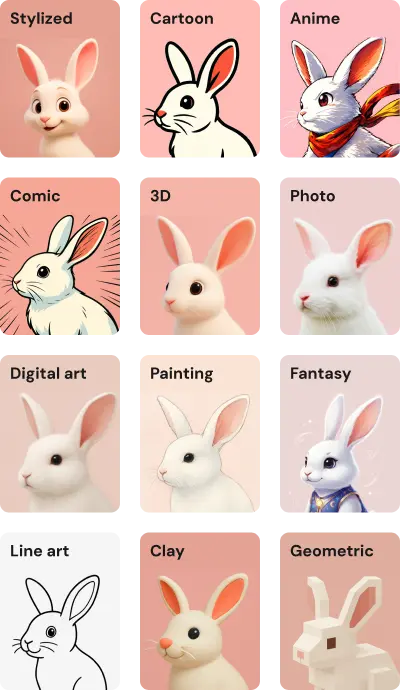
Tip: Toggle "Remove backgrounds" to render any style without a background for a cleaner, more focused look.
Before creating your support, you can add other characters, places, or objects to appear alongside the main character. Useful for:
Select supporting references in the preview before clicking Create.
Once you've reviewed the outline, chosen a format and art style, and added supporting references, click Create (e.g., Create Story, Create Schedule). Generation typically takes 1–3 minutes depending on the format.